Staff help
Keeping your timetable right
Conciergr Timetable is where your business keeps its branches, weekly classes, class sizes, trials, closed days and fees. Your customers read the same information on your timetable page, and your WhatsApp assistant answers from it. This guide shows how to keep it up to date.
Sign in
- Open the staff app, type the email address the owner added for you (a work or personal address both work) and choose Email me a sign-in link.
- Open the link in the email and choose Sign in. It works once, for 15 minutes. There is no password.
- If your email works for more than one business, the app asks Which timetable?. Choose one. You can change later with Switch to at the bottom of the menu.
- The app then asks how you'd like to work: With my AI assistant or Set it up myself.
Work with your AI assistant
Claude, ChatGPT or another AI app can do anything you can do here, at your own branches and with your own permissions, if you connect it once. Open AI assistant in the menu for the address to add and a prompt to paste; the AI assistant guide explains it all. It never messages your customers, every change it makes shows in the history with its name, and Disconnect on the same screen stops it at once.
- Connecting Claude: in the Claude app or on claude.ai, Settings, Connectors, Add custom connector. Paste
https://timetable.conciergr.com/mcpand choose Connect. - Connecting ChatGPT: only on chatgpt.com in a web browser (a laptop is easiest): Plugins, Add, Add custom MCP server. Name it Conciergr Timetable, paste the same address, and leave Authentication on OAuth. The ChatGPT phone app can't add it, but uses it once it's added.
- There is no API key. Leave any client ID and client secret fields empty.
- Signing in: our page opens inside the AI app. Type your work email, then the six-digit code we email you (subject "123456 is your Conciergr Timetable code"; check spam if it hasn't come within a few minutes). Choose the business and press Connect. No timetable yet? The same page lets the AI app start one, after you tick the Terms.
- What it can't do: message your customers, make someone an owner, close the account or issue API keys. Those stay with you in the app. A staff member's AI app can do only what that person's ticks allow, at their branches.
- Cost: free, like the staff app. Your AI app's own subscription is between you and its maker.
- "This connection can't go ahead": the AI app's sign-in took longer than 30 minutes, or was started in another browser. Start connecting again from the AI app.
- It stopped working: it was disconnected, or the person who connected it was removed from the staff list. Connect it again from the AI app.
The menu takes you to each part of the app: Week board, Today (front desk), All classes, Closed days, Fees and, for the owner, Settings & staff. Your branches are listed underneath. A branch marked not live has not been confirmed yet.
The owner can rename "Level" and "Subject" to fit your business, for example "Stage" and "Class". If they have, the app uses your words everywhere, so a field this guide calls "Levels" may say "Stages" on your screen.
What customers and the assistant see
Everything you enter here goes straight to your customers. A wrong time or a missing closed day reaches them within about a minute.
- Your timetable page. Customers choose their child's level and a branch, then see the classes by day, with a Places available, Few places left or Full badge, closed days, and a button to ask about a trial by WhatsApp, text, phone call or email, whichever the owner chooses in Settings & staff. It shows only branches that have been confirmed (see Make a branch go live). Changes appear within about a minute.
- Your WhatsApp assistant. For a confirmed branch, the assistant looks up the timetable live whenever a customer asks. It gets the exact number of places left, not just the badge.
- Months not published yet. If a customer asks about a month after your last class at a branch ends, the page and the assistant say it is "not out yet", not that there is no class.
Class times, class sizes, seats taken, closed days, the reason you give for a closure or a cancelled lesson, and fees are all shown or quoted to customers. Teachers' names are shown too if the owner has switched that on.
Who can do what
The owner can do everything. Everyone else can do only what the owner has ticked for them, and only at the branches the owner has chosen for them.
| What you want to do | What you need |
|---|---|
| See the week board, today's lessons, all classes, closed days and fees | Anyone who can sign in |
| Change seats taken, see the names of trial children, and book a trial child in or take one out | The Seats & trial seats tick |
| Add, change or delete classes, set a class size, change a class's time from a date, confirm a branch or take it off live, carry classes forward | The Classes & times tick |
| Add or remove closed days, and restore a cancelled lesson | The Closed days & cancelled lessons tick |
| Cancel one lesson of a class | Both the Classes & times and Closed days & cancelled lessons ticks |
| Close every branch at once | The closed days tick at Every branch |
| Add or change fees, business settings, staff and API keys | The owner |
If the app says Your account cannot… or That branch is not one of yours, ask your owner to change your ticks or branches. Every change is recorded with who made it and when.
Week board
What it is for: seeing one branch's whole week at a glance, and adding or changing its classes. It needs a computer.
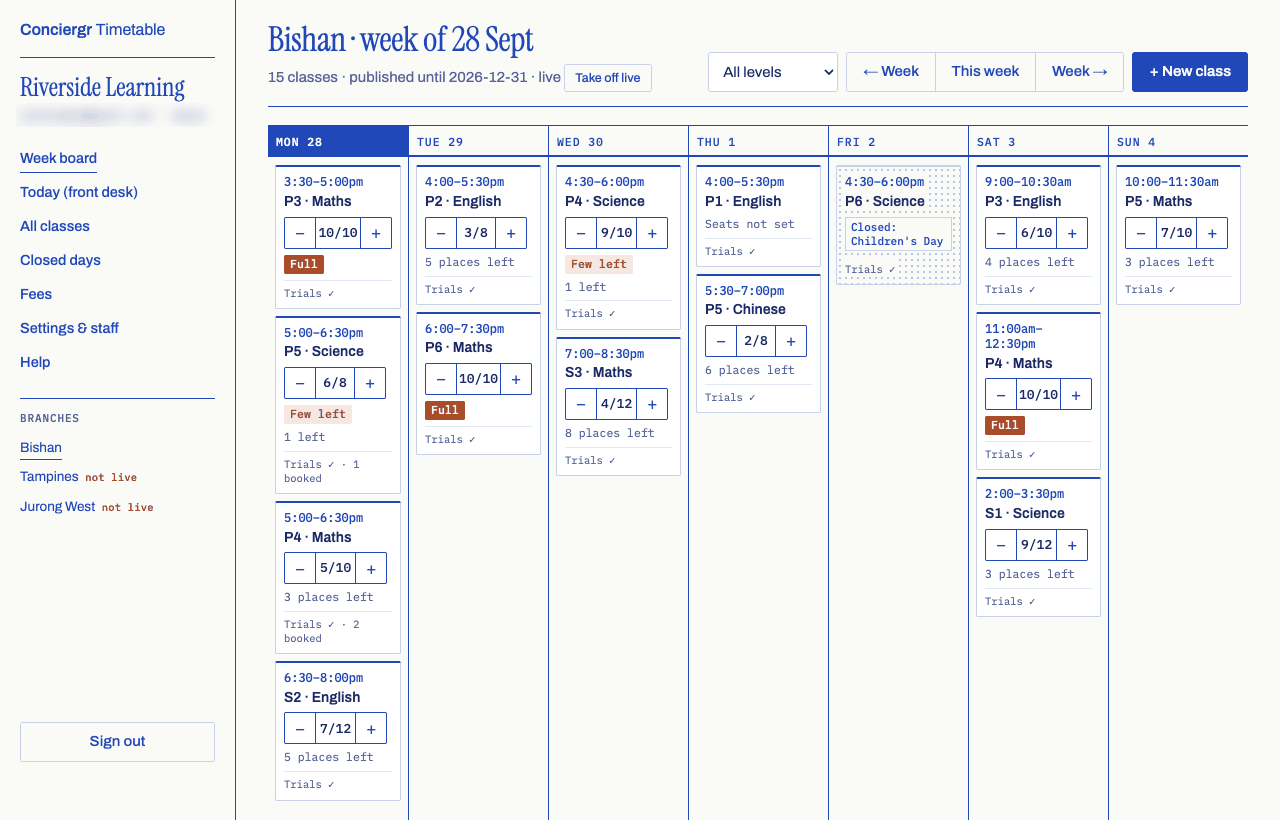
- Choose a branch under Branches in the menu. The board opens on the branch you last looked at.
- Move between weeks with ← Week, This week and Week →. Narrow the board to one level with the All levels list.
- The line under the branch name says how many classes it has and the month it is published until: the last month any of its classes runs. For a live branch it also says live.
- Each card shows the time, the levels and subjects, seats taken out of the class size, the places left, and the trial line: Trials ✓ with the most per lesson and how many are booked, or No trials.
- A card with a dotted background is a lesson that is not happening: closed for the day or cancelled, with the reason. A cancelled lesson has a Restore button (see Cancel or restore a lesson).
- If seats have not been updated for 14 days, the trial line says so (for example seats 20 days ago). Please check them.
- Click a card to open the class and see or change everything about it.
Add a class
- On the week board, choose + New class. (It is also on All classes.)
- Fill in Class size (the most children it takes) and, if you know it, Seats taken. Leave the class size empty if you don't know it yet.
- Tick its levels and subjects. A fixed class has one of each; a shared slot can take several.
- Choose the Branch and Day, then type Starts and Ends as 4:30pm or 16:30. A time like "7:30" without am or pm is refused, because it could be morning or evening.
- Set the First month and Last month the class runs. Both are needed. For a holiday programme or a course with set dates, open Exact first or last lesson date (optional) and add the dates.
- Set the trial rules: Takes trial children, Most trials per lesson and Notice (days), the least notice you need before a trial.
- Add the room, mode (in person, online or hybrid) and teachers if you use them, then choose Add class.
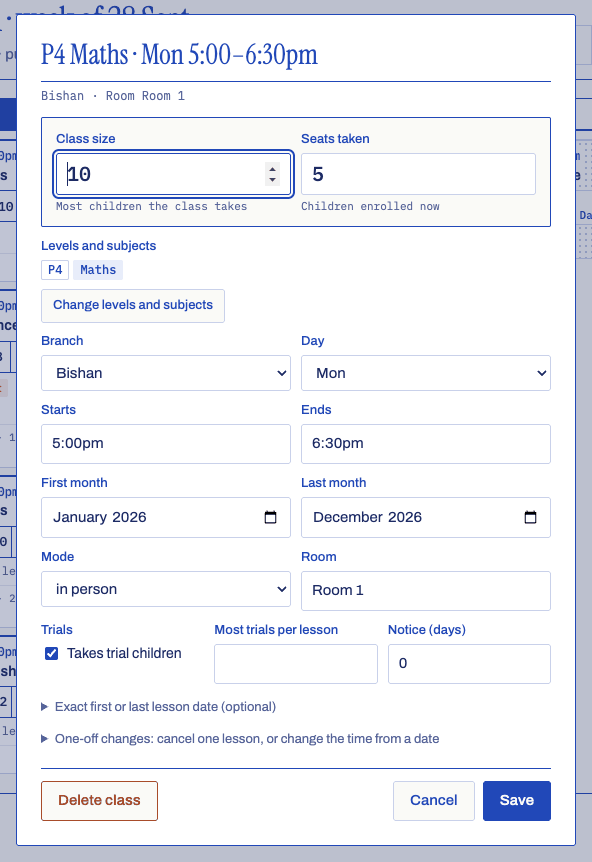
If something is not right, the app says which field and why, next to that field and beside the Save button. Nothing is saved until every field is accepted.
Change or delete a class
- Click the class's card on the week board, or Open on All classes.
- Change what you need and choose Save. To change the levels or subjects, choose Change levels and subjects first.
- To remove the class completely, choose Delete class. Customers and the assistant stop seeing it at once.
If a class moves to a new day or time from a certain date, don't just edit the time: that would change past lessons too. Instead open One-off changes in the class window, fill in Change the time from a date and choose Change the time. The date must fall on the new day. Lessons before that date keep the old time.
Mark a class full
A class is full when its seats taken reach its class size. You don't set "full" yourself; the app works it out.
- Make sure the class has a Class size. Without one, it shows Seats not set and customers see no badge.
- Press + on the card's seat counter until seats taken equal the class size, or open the class and type the number into Seats taken, then Save.
- The card shows Full. Customers see a Full badge, and the trial button becomes Ask about other times.
Trial children booked into a lesson also take places, so a lesson can show as full on its own day before the class is. Seats taken can never be more than the class size. When a child leaves, press − to free the place.
Make a branch go live
A new branch starts not live: customers don't see it on your timetable page, and the assistant still answers from your old spreadsheet. Confirm it once its classes are right.
- Open the branch on the week board. A banner says The assistant still reads the spreadsheet for this branch.
- Check every class, week by week: times, levels, subjects, months and class sizes.
- Choose Confirm this branch in the banner, then OK.
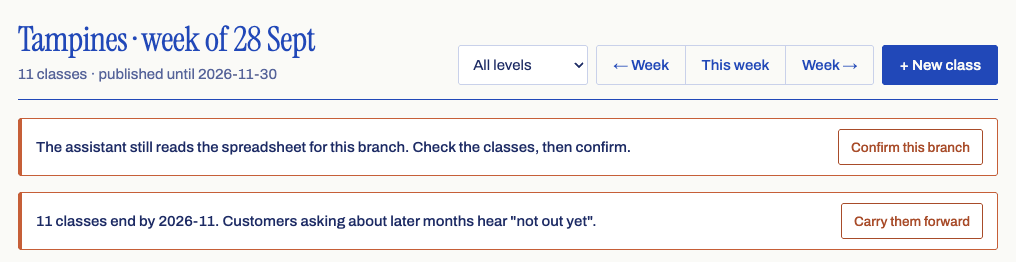
From then on the branch appears on your timetable page and the assistant answers from it. If you confirmed it too early, take it off live.
Take a branch off live
Use this if a live branch's timetable turns out to be wrong and customers shouldn't see it while you fix it.
- Open the branch on the week board. The line under its name ends live, followed by a Take off live button.
- Choose Take off live, then OK.
Customers stop seeing the branch on your timetable page, and the assistant answers from your spreadsheet again. When the classes are right, confirm the branch again. This needs the Classes & times tick.
To go back to your spreadsheet at every branch at once, the owner can stop using the timetable.
Carry classes into next term
Every class has a last month. When classes at a branch are about two months from ending, a banner on the week board says how many end and by when, because customers asking about later months are told "not out yet". The banner offers two ways on.
Extend them (the usual case: the same classes simply carry on):
- Open the branch on the week board and choose Extend all to… on the banner.
- Pick the new last month. It starts at the same length again, for example October 2027 for classes that ran November to October.
- Read the preview, for example 16 classes: last month Oct 2026 becomes Oct 2027, then choose Extend 16 classes.
Each class keeps its day, time, levels, subjects, seats and trial rules; only its last month moves. A class with an exact last lesson date loses that date (the preview says so). You can undo it for 10 minutes.
Carry them forward (when next term is a new set of classes that starts from a copy):
- Choose Carry them forward on the banner, then OK.
- Each class is copied into the next months, starting the month after it ends, for the same number of months: same day, time, levels, subjects, class size, seats taken and trial rules. Exact first and last lesson dates are not copied.
- Open the next weeks on the board and change or delete any copied class that won't run next term.
The old classes stay as they were and still end in their last month, so nothing changes for customers before then. A class that has been carried forward can't also be extended into the same months; extend or change the new copy instead.
Cancel or restore a lesson
Use this when one lesson won't happen (a teacher is away) but the class carries on. To close a whole branch for a day, use Closed days instead.
- Open the class and choose One-off changes: cancel one lesson, or change the time from a date.
- Under Cancel one lesson, choose the date and type the reason customers will see, for example "Teacher away".
- Choose Cancel that lesson.
The lesson shows as cancelled on the week board, on Today and on your timetable page.
To bring it back, find the cancelled lesson on the week board or on Today and choose Restore next to the reason, then OK. It goes back to normal for customers and the assistant. Restoring needs the Closed days & cancelled lessons tick.
Reminder emails
Nightly reminder emails to staff are being added. When they arrive, they will work like this, for live branches only:
- Classes ending. About 30 days before classes at a branch end, the owner and the staff with the Classes & times tick at that branch get an email, so you can carry them forward in time.
- Class sizes out of date. When seats have not been updated for 14 days, the staff with the Seats & trial seats tick get an email.
Until then, the banner on the week board and the seats … days ago note on each card show the same things.
Today (front desk)
What it is for: the front desk. It shows today's lessons at one branch, how full each one is, and the trial children expected. It works well on a phone.
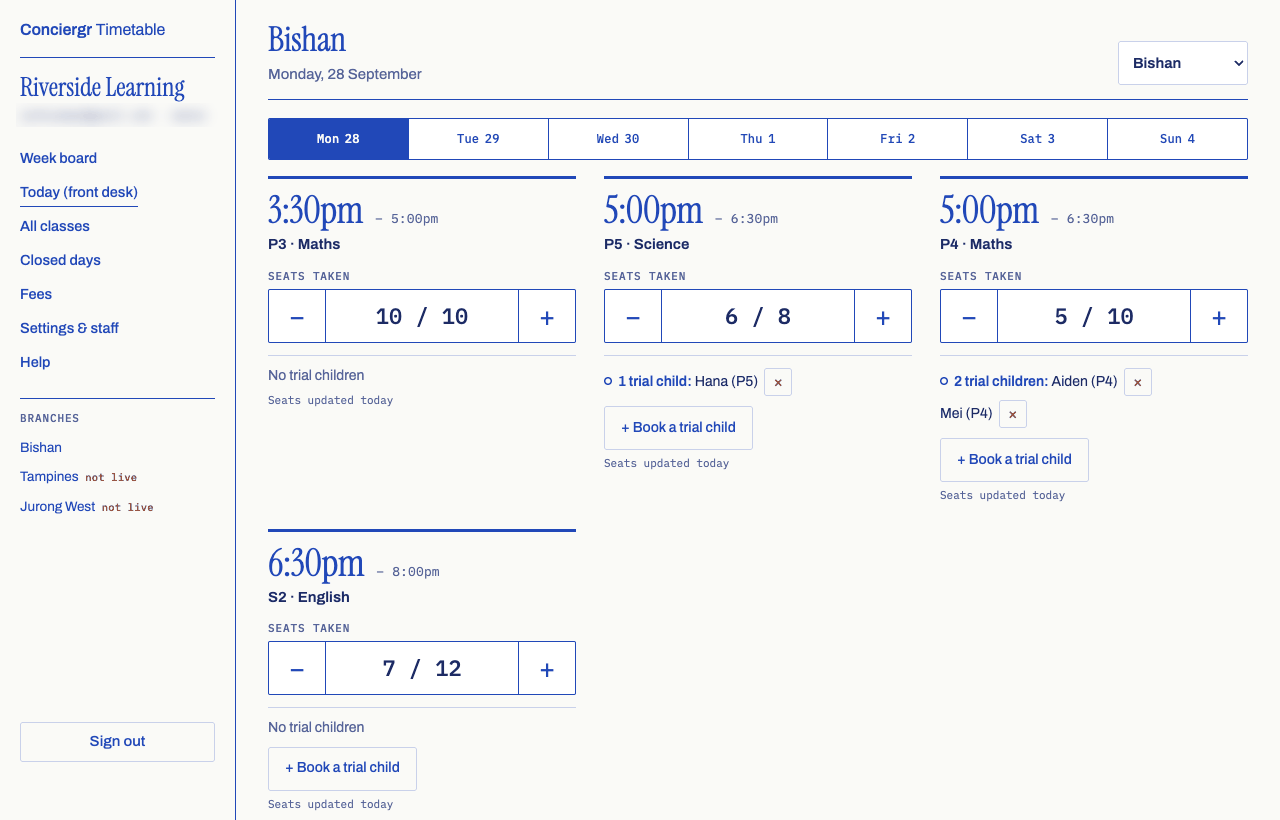
- It opens on the branch you last used. If you work at more than one, pick another from the branch list at the top.
- Tap a day in the strip to see another day this week.
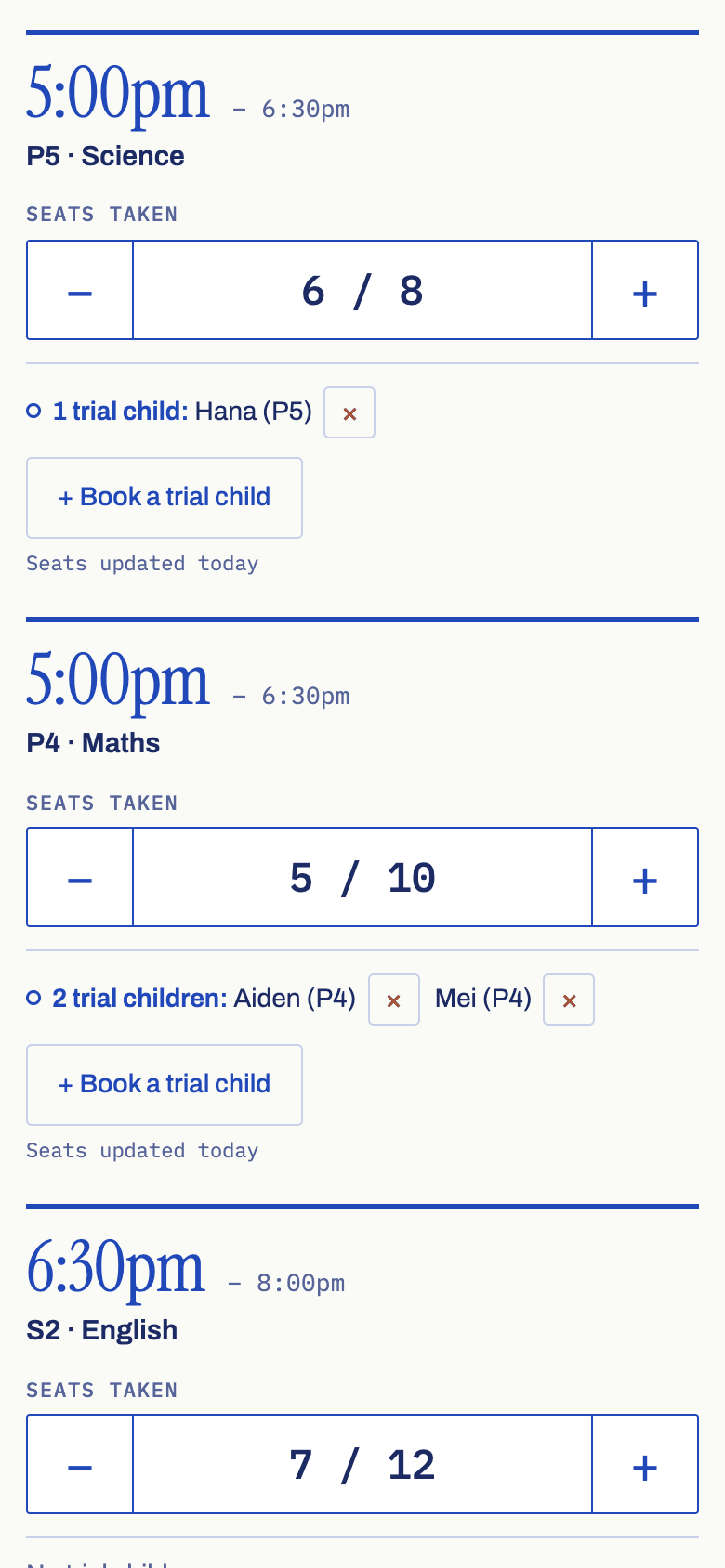
- Each lesson shows its time, levels and subjects, Seats taken with − and + buttons, and when the seats were last updated.
Update seats taken
Tap + when a child joins and − when one leaves. Each tap is saved straight away, and fast taps on a slow connection all count. The number cannot go below 0 or above the class size.
If a lesson shows Set class size, the class has no size yet. Tap it and type the most children the class can take, for example 8. (This needs the Classes & times tick; without it you see Class size not set.)
Book in a trial child
A trial child is a customer's child coming to try one lesson of a regular class. They take one of that lesson's places. The app keeps only the child's first name and level, and deletes the name 30 days after the lesson.
- Who is coming. On Today, each lesson lists its trial children with their level, for example 2 trial children: Aiden (P4), Mei (P4). On the week board the trial line says how many are booked. Seeing the names needs the Seats & trial seats tick.
- Booked by the assistant. Your WhatsApp assistant books trial children into classes. It holds a place at once only if the class takes trials, the date is a real lesson (not closed or cancelled), there is enough notice, the lesson is under its most trials per lesson, a place is left, and the class takes the child's level. Otherwise it offers the customer the next dates that work.
- Setting the rules. Open a class and set Takes trial children, Most trials per lesson and Notice (days).
If a customer arranges a trial with you directly, book the child in yourself:
- On Today, find the lesson and choose + Book a trial child. It appears on lessons that take trials and haven't started yet.
- Type the child's first name. If the class takes more than one level, choose the child's level too.
- Choose Book in. The child appears in the lesson's list and takes one of its places.
Your bookings follow the same rules as the assistant's, except the notice period, which applies only to bookings from the assistant or other connected systems. If the booking can't be made, the app says why (for example, the lesson is full) and lists the dates that would work.
To take a child out, choose × next to their name, then OK. The place goes back to the class.
Type only the child's first name. The app keeps nothing else about them, and deletes the name 30 days after the lesson. Booking and removing trial children needs the Seats & trial seats tick.
All classes
What it is for: every class at every branch in one table, like a spreadsheet. Use it to check and fix many classes quickly, to change many classes at once, and to download the timetable. It needs a computer.
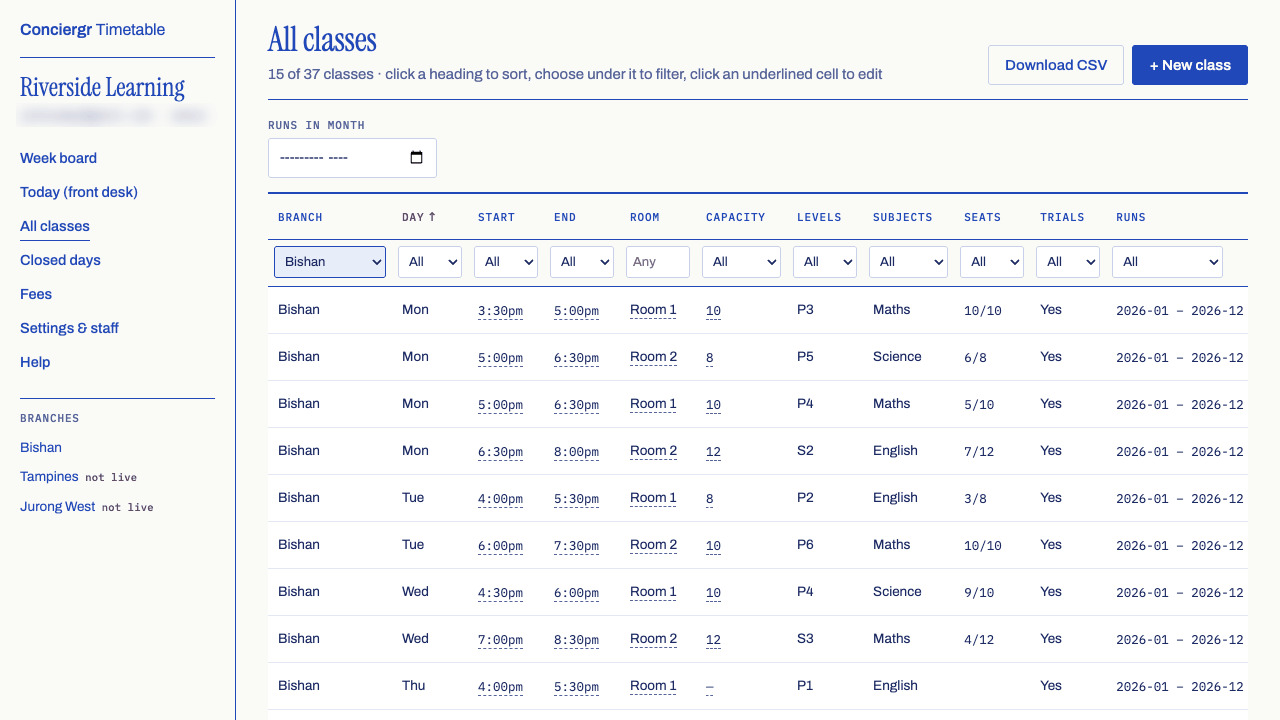
Sort and filter
- Sort: click a column heading to sort by it. Click again to reverse the order, and a third time to go back to the usual order. An arrow shows which column is sorted.
- Filter: under each heading there is a list (or, for Room, a box to type in). Choose a value to show only the classes that match, for example Day Sat and Seats Full. You can filter on several columns at once. The line under the title says how many classes are shown, for example 12 of 97 classes.
- Clear: Clear, at the end of the filter row, removes every column filter.
- By month: Runs in month, above the table, shows only classes running in that month. Any month clears it.
The sort and filters stay in the page's address, so you can bookmark a view you use often or send the link to a colleague.
Edit in the table
- Click an underlined start time, end time, room or capacity (the class size).
- Type the new value and press Enter to save, or Esc to undo.
- If the value is refused, the cell turns red and a line under the row says why. Nothing wrong is saved.
For anything else (levels, subjects, months, trials), choose Open at the end of the row to open the class window. To change the same thing on many classes, tick them instead.
Change many classes at once
Use this to change the months, class size, trials, room or teachers of many classes together, or to delete them. For example, to run every Bishan class two months longer.
- On All classes, filter the table to the classes you want, for example Branch Bishan.
- Tick the box at the start of each row, or tick the box in the heading to Select all shown. A bar at the bottom says how many are selected.
- Choose what to change on the bar: Change months, Class size, Trials, Room & teachers or Delete.
- Fill in the change. Leave a box empty to keep what each class has. The window shows a preview before anything is saved, for example 97 classes: last month Oct 2026 becomes Dec 2026.
- Choose Change 97 classes (or Delete) to save.
- All or nothing. If any class can't take the change, nothing is saved, and the window lists each one with the reason: a class size below the seats taken, trial children booked in months you are removing, or a class already carried forward into the months you are adding. Choose Leave these out to untick them and go on with the rest.
- Exact lesson dates. Moving a first or last month clears that class's exact first or last lesson date. The preview says how many.
- Ticks stay put while you sort and filter, so you can build a selection from several filters. The bar says how many of the ticked classes the filters are hiding. Ticks are cleared when you reload the page or go to another screen.
- Undo. After a change, a strip at the top says, for example, Changed 97 classes. Undo (until 2:32pm). For 10 minutes, Undo puts every class back exactly as it was, deleted classes included, with their trial children and cancelled lessons. Only the person who made the change, or the owner, can undo it. If one of the classes has been changed again since, Undo does nothing and names it, so newer work is never lost.
Levels, subjects, day and time are changed one class at a time, with Open. Every change shows in each class's history. Changing many classes needs the Classes & times tick at every branch they are at.
Download the timetable
- On All classes, sort and filter the table to show what you want, for example one branch.
- Choose Download CSV.
The file holds exactly the classes shown, in the order shown, with their branch, day, times, room, class size, seats taken, levels, subjects, teachers, trials and months. It opens in Excel, Numbers or Google Sheets. Its name says what it holds, for example riverside-classes-bishan-P4.csv.
Closed days
What it is for: the dates a branch, or your whole business, is shut. Lessons on those dates show as closed everywhere at once: on the week board, on Today, on your timetable page and in the assistant's answers.
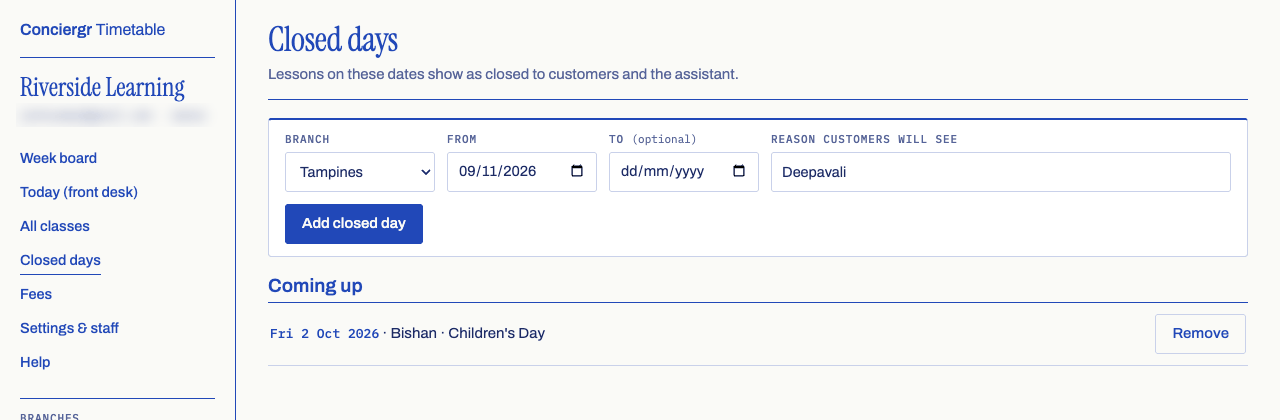
Close a branch for a public holiday
- Open Closed days.
- Choose the Branch, or Every branch to close them all (this needs every branch in your grant).
- Choose the From date. For a break of several days, choose the To date as well; leave it empty for one day.
- Type the reason customers will see, for example "Deepavali" or "Christmas break".
- Choose Add closed day.
To reopen, find it under Coming up and choose Remove. Lessons on those dates go back to normal for customers and the assistant.
Fees
What it is for: the prices your assistant quotes. Everyone can see the fees and use the quote box; only the owner can add or change fees.
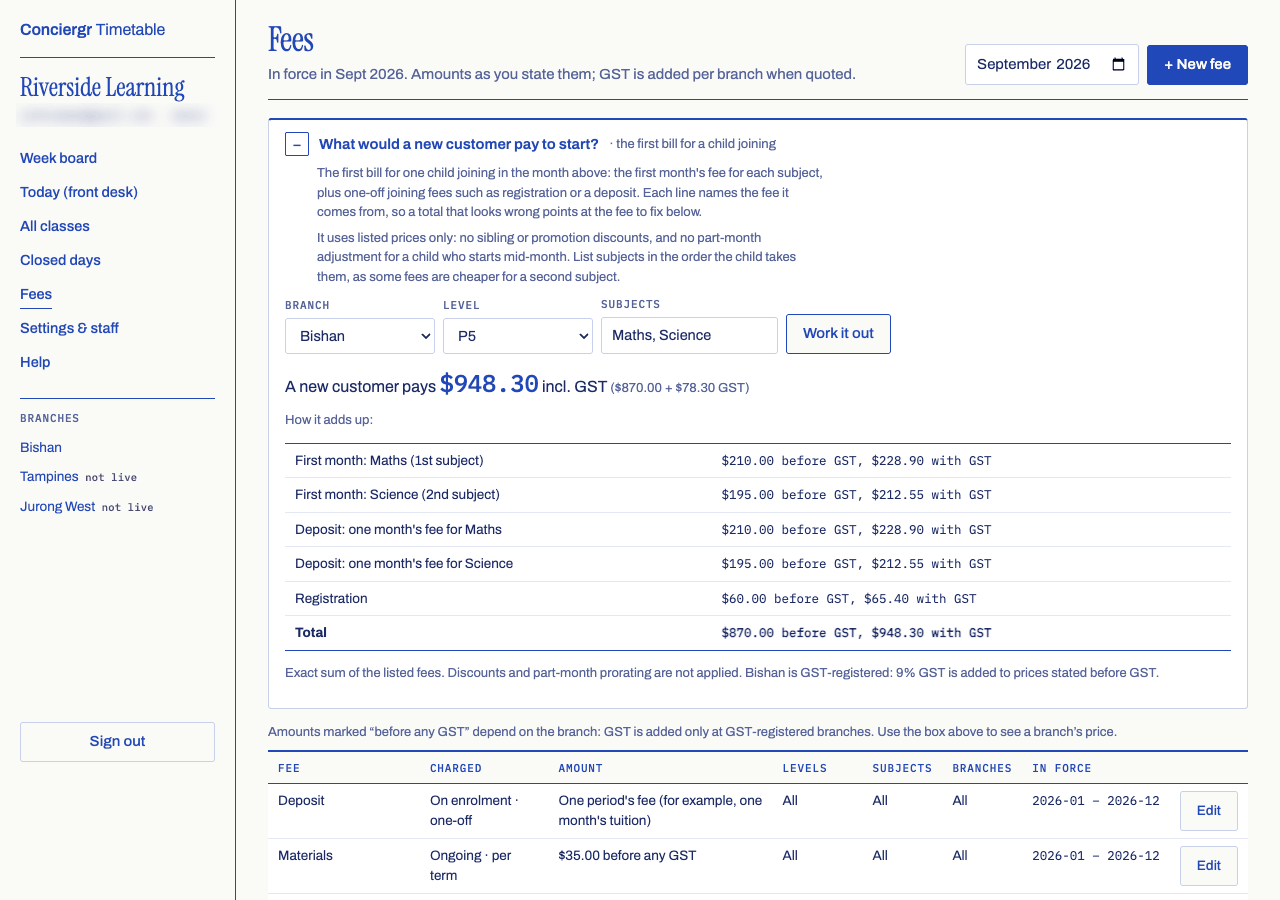
- The table shows the fees in force in the month at the top right. Change the month to see another.
- Amounts are as you state them. GST is added per branch, only at GST-registered branches, when a fee is quoted.
- A fee marked to confirm has not been confirmed yet, so the assistant cannot quote it as final. Prices we read from a timetable you sent us start this way: open one with Edit, correct it if need be, and press Confirm.
Quote a new customer's first month
- Open What would a new customer pay to start? above the table.
- Choose the Branch and the child's level.
- Type the subjects in the order the child takes them, separated by commas, for example "Maths, Science". Order matters when a second or third subject costs less.
- Choose Work it out.
You get the first bill for one child joining in the month shown at the top of the page: the first month's fee for each subject, plus one-off joining fees such as registration or a deposit, with GST if the branch is GST-registered. Every line names the fee it comes from, so if a number looks wrong you know which fee to fix. If a fee is still to be confirmed or says "ask the branch", the total says at least and lists what is missing.
The quote uses listed prices only: no sibling or promotion discounts, and no part-month adjustment for a child who starts mid-month.
Add or change a fee (owner)
- Choose + New fee, or Edit on a fee's row.
- Give it a name, what kind it is, when it is Charged (ongoing, on enrolment or when used) and How often.
- Under Price, choose an amount, free, one period's fee (for a deposit), ask the branch, or to be confirmed. Tick Amount includes GST if the amount you type already includes it.
- Set the first and last month it is in force, and tick the levels, subjects and branches it applies to. Nothing ticked means all of them.
- Choose Save.
Two fees for the same thing in overlapping months are refused, so change the old fee's last month first when a price changes.
Settings & staff
What it is for: the owner's page for business settings, staff and connections. Only the owner sees it, and it needs a computer.
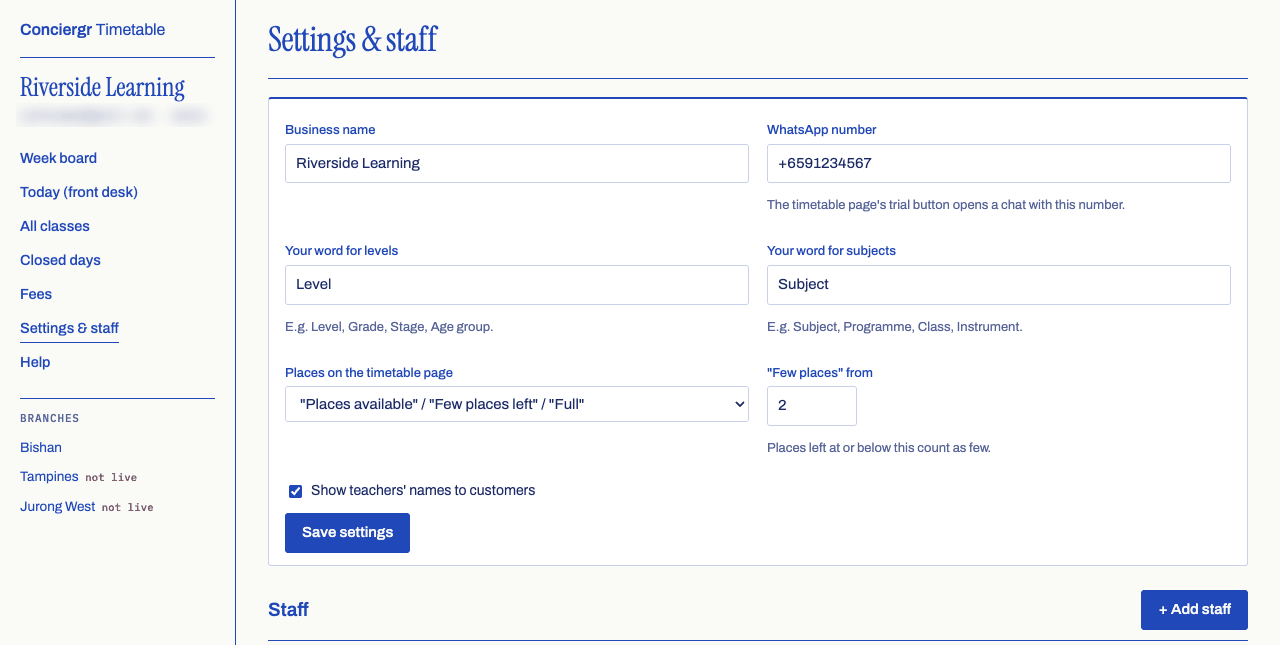
Business settings
- How customers ask about a trial: WhatsApp, Text message, Phone call or Email. Under it, type what that way needs: the WhatsApp number, the Phone number customers text or call, or the Email address they write to. The trial button on your timetable page then opens a WhatsApp chat, a text message or an email with the message already typed, or calls the number. A full class gets a button to ask about other times, the same way. The app won't save a way without its number or address.
- Your word for levels and Your word for subjects: the words used across the app, for example "Stage" or "Programme".
- Places on the timetable page: show customers bands ("Places available", "Few places left", "Full"), the exact number left, or only "Full". "Few places" from sets when a class counts as having few places.
- Show teachers' names to customers: switch teacher names on the timetable page on or off.
- Customers choose a level first (in your own word for levels): on, as it starts, your timetable page asks customers for a level and shows only those classes, which suits a long list of levels such as school years. Switch it off and the page opens on every class, day by day; the level list stays at the top as an optional filter, starting at "All", and each class shows its levels.
Choose Save settings when you are done.
Add a member of staff
- Choose + Add staff.
- Type their email (they sign in with it) and name. Any address they can open works: a work email, a personal Gmail or a branch's shared mailbox.
- Under What they can change, tick Seats & trial seats, Classes & times and Closed days & cancelled lessons as needed. With nothing ticked, they can only look.
- Under At which branches, tick Every branch or the branches they work at.
- Choose Save. They can sign in straight away with that email.
To change someone's access, choose Edit. Remove signs them out at once. There must always be at least one owner.
API keys
An API key lets another system read your timetable, book trial children or make changes. Create one only when asked to connect something. The key is shown once, so copy it straight away. Revoke stops it working at once.
Stop using the timetable
If you tried the timetable and would rather keep using your spreadsheet, the owner can take every branch off live in one go.
- On Settings & staff, find Stop using the timetable near the bottom.
- Choose Stop using the timetable, read the message, then choose OK.
Your WhatsApp assistant answers from your spreadsheet again at every branch, so check the spreadsheet is up to date first. Your timetable page says "Our timetable is being prepared", so if you put it on your website, take it off.
Nothing is deleted: classes, fees, closed days and staff all stay. If you change your mind straight away, choose Put them back and the same branches go live again. Later, confirm a branch on its week board to start again there.
Put your timetable on your website
What it is for: showing your timetable page inside your own website, so customers see your classes without leaving it. Everything you need is on Share & embed in the menu, which every member of staff can open.
Before you start
The checklist at the top of Share & embed says what would make the timetable look empty on your website. Fix anything marked ! first:
- No branch is live yet. Your page says "Our timetable is being prepared" until one is. See Make a branch go live.
- No WhatsApp number, phone number or email address. Without the one your chosen way needs, customers get no buttons to reach you. The owner adds it in Settings & staff.
- The branch you picked isn't live. A timetable made for one branch shows "being prepared" until that branch is live.
Make your code
- Open Share & embed.
- Under Put it on your website, leave Branch and Level on Customers choose, or pick one to show only that branch or level (for a branch's own page, say). Levels and branches keep working if you rename them later.
- If you like, tick Use your brand colour and choose it, or type its code (such as #1A7F5A). A very light colour is darkened just enough for the text to stay readable. Tick See-through background to let your website's own background show; it suits white or light websites.
- Check the Preview, then choose Copy the code. You get one line, such as
<script src="https://timetable.conciergr.com/embed.js" data-centre="your-page" async></script>.
Paste it where the timetable should appear. It grows and shrinks to fit the classes shown, and you can paste it more than once on one page, for example once per branch. Under Other ways there is a version for website builders that don't run scripts (a frame with a fixed height), a See our class times button, and the plain link.
WordPress
- Edit the page and add a Custom HTML block where the timetable should go.
- Paste the code, then choose Update or Publish. The editor shows the code, not the timetable; open the page itself to see it.
WordPress removes scripts for some accounts: staff who aren't administrators, and WordPress.com sites on plans without plugins. Paste the frame from Other ways instead, or use the button.
Wix
- In the editor, choose Add, then Embed Code, then Embed HTML.
- Choose Code, paste, and choose Update.
- Drag the box's bottom edge down until the timetable fits, for example 1,200 pixels tall, then publish.
Wix keeps pasted code in a box of its own size, so the timetable can't make that box taller by itself. If a long list of classes doesn't fit, the timetable scrolls inside the box.
Squarespace
- Edit the page, add a block, and choose Code.
- Paste the code, turn off Display source if it is on, then save the page.
- The timetable may not show while you are editing. Open the live page to see it.
Some older Squarespace plans don't run scripts in code blocks. If nothing appears, paste the frame from Other ways instead.
Google Sites
- In Share & embed, open Other ways and copy the code under If your website builder blocks scripts.
- In Google Sites, choose Insert, then Embed, then the Embed code tab. Paste, choose Next, then Insert.
- Drag the box's corner until the timetable fits, then publish.
Webflow and hand-made websites take the one-line code as it is: in Webflow use a Code Embed element and publish the site to see it.
Share the link or a QR code
Share & embed also shows your page's link with a Copy link button, and a QR code. Choose Download PNG to print it for your front desk, flyers or class letters; a phone camera opens your timetable from it.
On a phone
On a phone the app shows only Today, Closed days and Fees: enough for the front desk to update seats, see and book in today's trial children, add a closed day and quote a fee. The week board, All classes and Settings & staff say they need a computer.
Words the app uses
- Class
- One weekly time at one branch, for example "P4 Maths, Monday 5:00 to 6:30pm at Bishan".
- Lesson
- One dated meeting of a class, for example the lesson on Tuesday 6 October.
- Class size and seats taken
- The most children a class takes, and how many are enrolled now. Places left are worked out from them, minus any trial children booked that day.
- First and last month
- The months a class runs. Every class has a last month; nothing runs for ever.
- Published until
- The last month any class at a branch runs. Customers asking about a later month hear "not out yet".
- Closed day
- A date a branch, or every branch, is shut. No lessons happen there that day.
- Cancelled lesson
- One lesson of a class that won't happen. The class itself carries on.
- Live branch
- A branch whose timetable has been confirmed. Customers see it on your timetable page and the assistant answers from it.
Getting help
Something not working, or not sure what to do? Email hello@conciergr.com with your business name, the branch, and what you were trying to do. A screenshot helps. You'll get a written answer you can keep and share with your team.